Learn Cyber Security, How to InfoSec, Tutorials, and more about CyberSecurity!

Showing posts with label windows. Show all posts

Wednesday, 11 November 2015

Domain Name System (DNS)


         The Domain Name System (DNS) is one of the most important components of Internet infrastructure. If DNS unavailable, you'll have difficulty finding resources on the Internet and, likewise, others will be unable to find you. That's because DNS is the phone book that translates names such as www.mysite.com to Internet Protocol (IP) addresses such as 199.239.136.245, and vice versa. DNS saves us from having to remember the IP addresses of all of our favorite sites, and it allows Web pages to link to others by name, not by IP address. Finding hosts by name allows IP addresses to change over time, allowing sites to grow, change location, or reconfigure. But, DNS does a whole lot more than just name-to-address mapping. Understanding the basic structure, function, and operations of DNS is an important foundation for all modern-day IT professionals.
        DNS is a hierarchical, distributed database with delegated authority. The "delegated authority" part means that you're responsible for providing a way for Internet users to loop up an IP address associated with your organization's domain. Many organizations let their ISPs manage DNS for them, but that's a risky proposition at best. A configuration mistake or failure at your ISP can make your company appear offline for at least a portion of the Internet. A political issue could cause you to lose control of your domain information. And, unless you're your ISPs largest customer, you have to wait in line with everyone else when you need to make a change to one of your DNS records.
        DNS holds the key to your existence on the Internet, which is why you want to control DNS for your domain. DNS is even more than that. DNS is an anti-phishing mechanism, it helps your organization to reject email spam, and it's a privacy mechanism that helps to hide your email internal network topology. Here are just a few ways DNS helps in these areas:
1. Anti-phishing: Imagine how quickly your personal information would be lost if your couldn't trust the identify of your online bookseller or bank. When DNS is working correctly, it helps you to reach the real site, not the imitation one run by an identify thief.
2. Anti-spam: Do you think that you get a lot of spam? You'd be getting a lot more if DNS weren't working for you. Your mail server can verify domain names on incoming email messages, helping to weed out spam. New DNS mechanisms, including Sender Policy Framework (SPF) or DomainKeys (DKIM), identify who is allowed to send mail on behalf of a domain so you can reject email from imposters. Real-time blacklists (RBL) let your mail server quickly check to see whether a sender is a knwown spammer or a known infected machine. RBL such as www.spamhaus.org use DNS as a lightweight query-response mechanism for checking the addresses of email senders.
3. Privacy: DNS reveals to external clients only what you want the public to see about your network. Likewise, it lets internal users and servers see whatever is appropriate for them to see. DNS helps you mask addresses by giving them different names depending on whether they're accessed from the inside or outside of your network, helping to increase your network security.

The three main components of a DNS system are:
- Domain Name Space: defines the overall naming structure of the Internet
- Name Server: maintains a portion of the domain name spaces, resolve lookups, and maintains a cache
- Domain Name Resolution: maps a domain name to an IP address

Domain Name Space
           The domain name space defines the overall naming structure of the Internet.
The name space is consists of a tree structure of domain names, with a root domain at the top. Immediately below the root domain are the major domains such as .com, .net, and .org. From these domains, the name space can branch into multiple pathsm with each intersection point called a node and labeled with a simple name.


           DNS processes a domain name from right to left, with the highest-level node represented at the far right, and the lowest level node at the far left. The node labels are separated by dots (examples: google.com).
The domain name of any node in the tree is the sequence of node labels leading from that node all the way up to the root domain. The top-level node (appearing farthest to the right) identifies the geography or purpose (examples: .com, .uk). The second-level node (appearing second from the right) identifies a unique place within the top-level domain.
Domain names can contain up to 255 characters consisting of: characters A to Z, 0 to 9, and/or "-"; 63 characters per node; and up to 127 node levels. To ensure that each node is uniquely identified, DNS requires that sibling nodes - nodes that are "children" of the same "parents" - be uniquely named. For example, these "absolute" names are unique:
beckett.af.mil

As shown in the following diagram, the name space tree is sub-divided into zones. A zone consists of a group of linked nodes served by an authoritative DNS name server (the final authority in providing information about a set of domains).


          A zone contains domain names starting at a particular point in the tree ("Start Of Authority") to the end node or to a point in the tree where another host has authority for the names.
For example, the top-level .gov domain has the subdomains wa.gov, tx.gov, co.gov for the states Washington, Texas and Colorado. The .gov zone file contains pointers to the sources of data for tx.fov, co.gov and wa.gov.
Similarly, if the wa.gov domain delegated authority for dol.co.gov to the information system section of the Washington State Department of Licensing, the zone file for wa.gov only contains a pointer to the data source for dol.wa.gov.

          Each node in the tree has one or more resource records (RR), which hold information about the domain name (for instance, the IP address of www.google.com)
RR can store a large variety of information about a domain: IP address, name server, mail exchanger, alias, hostname, geo-location, service discovery, certificates and arbitrary text.
RR contain information such as:
a) Start-of-Authority (SOA) Record
When a zone file indicates to a querying server that this is the authoritative record for this domain, it says to the query, "You have arrived". The SOA contains the following data fields:
- Serial Number: indicates number of changes to the zone file. The number increases as the file is updated.
- Refresh: tells the name server how often to check to update its data
- Retry: tells server when to return if it is unable to refresh data
- Expire: tells how long the data can site bfore it is too old to be valid
- Time to Live: tells other servers how long to cache the data they have downloaded

b) Name Server (NS) Record
An NS record is a record that indicates which computer is to be used to retrive information about the domain name space for a particular domain name. A Host Name Server contains information about "your" computer and supplies IP addresses that are associated with it.

c) Mail eXchange (MX) Record
MX records specify the mail server address for the domain name. This record allows email addressed to a specific domain to be delivered to the mail server that is responsible for it. The mail server is a host address. There can be a number of mail servers associated with a MX record. Each server has a priority set for mail receipt.

d) Address (A) Record
This record tells the name server the correct IP address for the domain. The name server that is authoritative for the domain contains all the information necessary to resolve this name.

e) Canonical (C-NAME) Record
C-Name records provide name-to-name-to-IP address mapping for any domain name aliasing. The difference between CNAME and A records is that the CNAME resolves to another domain name that then resolve to an IP address.

Name Servers
Name servers generally store complete information about a zone. There are two types of name servers: primary and secondary. Every zone must have its data stored on both a primary and a secondary name server.

Primary Name Servers
Primary name servers hold "authoritative" information about set of domains, as well as cached data about domains previously requested from other servers.
Each name server stores a portion of the overall name space (a zone file), and can contact other name servers to lookup names outside its name space. The name server listens for DNS queries,  and if the queried name is in the local zone data or cache, responds immediately with an answer. If the name isn't in the local database or cache, the server uses its "resolver" to forward the query to other authoritative name servers.
If domain data changes, the primary name server is responsible for incrementing the Serial Number field in the SOA record in order to signal the change to secondary name servers.

Secondary Name Servers
Secondary name servers can download a copy of zone information from a primary name server using a process called a "zone transfer". Zone transfers allow secondary name servers to download complete copies of zones. Secondary name servers perform "zone transfers" according to the Expire Time parameter in the SOA record.

Dynamic DNS (DDNS)
Over the last decade, the exponential increase in the number of hosts on the Internet eventually uncovered two drawbacks with the original DNS system.
First, changes to zone files would not take effect until the DNS server was stopped and restarted. Second, primary name servers could only update secondary servers through processes called zone transfers. Traditional full zone transfers are inefficient because they occur on a scheduled basis instead of occurring as changes are made. These full transfers also involve transfer of all the records in a zone regardless of how many are changed.
To address these problems, the IEFT defined Dynamic DNS (DDNS) protocol in RFC 2136, zone change notification in RFC 1996, and incremental transfers in RFC 1995. DDNS allows DHCP servers to send updates to primary DNS servers, removing the need for administrator intervention. Additionally, when a change is made on the primary server, a zone change notification is immediately send to the secondary servers, with only the changed records being transferred.

Full Zone Transfer Process
To perform a zone transfer, the secondary name server queries the primary name server to determine if any changes have been made to the zone. The query is based on data in the primary server's SOA record: the Serial Number, and the interval specified by the Minimum TTL value.
The secondary server downloads all RR even if there are only a few modified records. Primary and secondary name servers are typically out of synchronization by approximately one hour.

Incremental Zone Transfer Process
If the primary name server supports the notify and I incremental Zone Transfer (IXFR) protocol, then the primary name server can notify the secondary name server that a portion of its data has changed. After receiving the notify command, the secondary name server can request only the data has changed from the primary using the IXFR command.

Domain Name Resolution
Resolvers
Name servers are capable of retrieving data from both their domain name spaces and other name servers domain name spaces. This process is necessary to translate human-readable domain names into machine-readable IP addresses.
When a name server acts as a "resolver", it maps a domain name, such as www.google.com, to an IP address that identifies the domain's hosted location. The resolver serves as a link between two computers: the one requesting a domain's IP address, and the one holding that information. The resolver returns the domain's IP address to the computer that requested the information.

Domain Name Resolution Process

In order to resolve the IP address of a domain name, a name server works on the domain name segment by segment, from highest-level domain appearing on the right, to lowest-level domain on the left. The resolver usually has to query several servers that are authoritative for various portions of the domain name to find all the necessary information.
A name server begins a search by first checking its own name space. If the queried domain name is not part of its space, the name server then issues a query to a root name server.
The root name server returns the names and addresses of the top-level name servers ("referrals") that are authoritative for the top-level domain. Root name servers know where the authoritative name servers are for all the top-level domains.
Next, the top-level name servers can provide the list of name servers authoritative for the second-level domain. Each name server queried provides the further information about how to get "closer" to the location it is seeking.


Some resolvers can only communicate with a single name server. These simple resolvers rely on a recursing name server to perform the work of finding information of them.

Caching
One of the inherent abilities of DNS is the ability to store recently retrieved domain names, a process caleed "caching". This process is useful for speeding up the resolution process.
Each time a name server "learns" the authoritative name servers for a zone and the addresses of those servers, it can cache this information to help speed-up subsequent queries. Thus, the next time a resolver queries for the same domain name, the name server is able to respond immediately because the answer is stored in its cache.

Conclusion: A DNS system is a fundamental piece of the Internet framework.

Follow on:
1. Facebook
2. Google+

Wednesday, 4 November 2015

Network Address Translation (NAT)


         This section explains Network Address Translation (NAT). NAT is also known as IP masquerading. It provides a mapping between internat IP addresses and officially assigned external addresses.
        Originally, NAT was suggested as a short-term solution to the problem of IP address depletion. Also, many organizations have, in the past, used locally assigned IP addresses, not expecting to require Internet connectivity.

        The idea of NAT is based on the fact that only a small number of the hosts in a private network are communicating outside of that network. If each host is assigned an IP address from the official IP address pool only when they need to communicate, then only a small number of official addresses are required.
        NAT might be a solution for networks that have private address ranges or unofficial addresses and want to communicate with hosts on the Internet. In fact, most of the time, this can also be achieved by implementing a firewall. Hence, clients that communicate with the Internet by using a proxy or SOCKS server do not expose their addresses to the Internet, so their addresses do not have to be translated anyway. However, for any reason, when proxy and SOCKS are not available, or do not meet specific requirements, NAT might be used to manage the traffic between the internal and external network without advertising the internal host addresses.
        Consider an internal network that is based on the private IP address space, and the users want to use an application protocol for which there is no application gateway; the only option is to estabilish IP-level connectivity between hosts in the internal network and hosts on the Internet. Since the routers in the Internet would not know how to route IP packets back to a private IP address, there is no point in sending IP packets with private IP addresses as source IP addresses through a router into the Internet.
        NAT takes the IP address of an outgoing packet and dynamically translates it to an officially assigned global address. For incoming packets it translates the assigned address to an internal address.


        From the point of two hosts that exchange IP packets with each other, one in the secure network and one in the non-secure network, NAT looks like a standard IP router that forwards IP packets between two network interfaces.


        For each outgoing IP packet, the source address is checked by the NAT configuration rules. If a rule matches the source address, the address is translated to a global address from the address pool. The predefined address pool contains the addresses that NAT can use for translation. For each incoming packet, the destination address is checked if it is used by NAT. When this is true, the address is translated to the original internal address.


         If NAT translates an address for an IP packet, the checksum is also adjusted. For FTP packets, the task is even more difficult, because the packets can contain addresses in the data of the packet. For example, the FTP PORT command contains an IP address in ASCII. These addresses should also be translated correctly and checksum updates and even TCP sequence and acknowledgement updates should be made accordingly.
        NAT looks like a normal IP router to the systems which use it. In order to make the routing tables work, the IP network design should choose addresses as if connecting two or more IP networks or subnets through a router. The NAT IP addresses need to come from separate networks or subnets, and the addresses need to be unambiguous with respect to other networks or subnets in the non-secure network. If the non-secure network is the Internet, the NAT addresses need to come from a public network or subnet, in other words, the NAT addresses need to be assigned by IANA.
        The assigned addresses should be reversed in a pool, in order to use them when needed. If connections are established from the secure network, NAT can just pick the next free public address in the NAT pool and assign that to the requesting secure host. NAT keeps track of which internal IP addresses are mapped to which external IP addresses at any give point in time, so it will be able to map a response it receives from the external network into the corresponding secure IP address.
          When NAT assigns IP addresses on a demand basis, it needs to know when to return the external IP address to the pool of available IP addresses. There is no connection setup or tear-down at the IP level, so there is nothing in the IP protocol itself that NAT can use to determine when an association between a secure IP address and a NAT non-secure IP address is no longed needed. Since TCP is a connection-oriented protocol, it is possible to obtain the connection status information from TCP (whether connection is ended or not), whereas UDP does no include such information. Therefore, a timeout value should be configured that instructs NAT how long to keep an association in an indle state before returning the external IP address to the free NAT pool. Generally, the default value for this parameter is 15 minutes.
Network administrators also need to instruct NAT whether all the secure hosts are allowed to use NAT or not. This can be done by using corresponding configuration commands. If hosts in the non-secure network need to initiate connections to hosts in the secure network, NAT should be configured in advance as to which non-secure NAT address matches which secure IP address. Thus, a static mapping should be defined to allow connections from non-secure networks to a specific host in the internal network. The external name server may, for example, have an entry for a mail gateway that runs on a computer in the secure network. The external name server resolves the public host name of the internal mail gateway to the statically mapped IP address (the external address), and the remote mail server sends a connection request to the IP address. When that request comes to NAT on the non-secure interface, NAT looks into its mapping rules to see if it has a static mapping between the specified non-secure public IP address and a secure IP address. If so, it translates the IP address and forwards the IP packet into the secure network to the internal mail gateway.
         Please note that the non-secure NAT addresses as statically mapped to secure IP addresses should not overlap with the addresses specified as belonging to the pool of non-secure addresses NAT can use on a demand basis.

         NAT works fine for IP addresses in the IP header. Some application protocols exchange IP address information in the application data part of an IP packet, and NAT will generally not be able to handle translation of IP addresses in the protocol. It should be noted that implementation of NAT for specific applications that have IP information in the application data is more sophisticated than the standard NAT implementations.

Saturday, 31 October 2015

Dynamic Host Configuration Protocol (DHCP)


          Every computer or device that connects to the Internet or to an IP network needs an IP address. Most users do not have the expertise to configure an IP address, subnet mask, and gateway. In addition, whenever a computer changes its location in the network, it must receive a new address. Somehow, the address assigned to each device and the addresses that are still available must both be tracked. Most companies do no have the time, resources, or staff to devote to managing such configurations. In addition, networks operate with a finite number of IP addresses. It is most efficient for a host to reserve an address only when it is using it.
          Dynamic Host Configuration Protocol (DHCP) enables hosts on an IP network, called DHCP clients, to lease a temporary IP address from a DHCP server. The server can also issue other configurations to the client that help it function on the network (such as the addresses of Domain Name System (DNS) and Windows Internet Naming Service (WINS) servers). This protocol helps reduce administrative overhead on an IP-based network.
         The ProCurve Secure Router can act as a DHCP server for hosts on directly connected subnets. Router interfaces can also act as DHCP clients and receive a dynamic address from a directly connected DHCP server.

          Understanding the basics of DHCP will help you understand and remember how to configure a DHCP pool. If you can track the DHCP process, you will also find it much easier to troubleshoot the router's DHCP activity.
The DHCP request process breaks down into four steps:
1. The client broadcasts a DHCPDISCOVER packet, requesting an IP address and other configurations.
2. The server responds with a DHCPOFFER, which includes an available network address.
3. The client sends a DHCPREQUEST, accepting the offer and requesting the complete configuration from the server.
4. The server responds with a DHCPACK, which includes:
- the agreed-upon network address
- a default gateway
- a lease time
- the address of one or more DNS servers (optional)
- the address of one or more WINS servers (optional)


         Depending on how you configure the ProCurve Secure Router, the router can act as the DHCP server and/or one of its interfaces can act as a DHCP client (however, an interface that acts as a DHCP client cannot also act as a server).

The ProCurve Secure Router as a DHCP Server
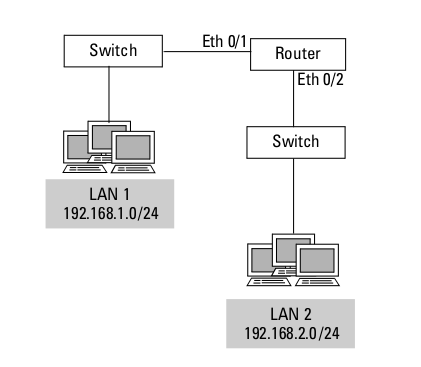
          A router that also functions as a DHCP server is particularly useful for a small-to-medium site at which all subnets connect to the WAN router. The ProCurve Secure Router can connect to up to two switches on its Ethernet ports.


          You should configure one DHCP pool for each subnet. For the default gateway, you would specify the IP address of the Ethernet interface through which the router connects to the subnet.
The switches may also connect to several VLANs. In this case, you would configure VLAN support on the Ethernet interfaces. You would then create a DHCP pool for each VLAN.
           A WAN interface can also act as a server for DHCP clients. However, usually the router at the remote site or a DHCP server would act as the remote network's server. On the other hand, when you bridge two remote sites, one router should act as a DHCP server for all clients in the network.

The ProCurve Secure Router as a DHCP Client
          Some service providers require their subscribers to lease a dynamic address from them. In particular, Frame Relay service providers often require their costumers to use DHCP when connecting to their network. Each permanent virtual circuit (PVC) endpoint receives an IP address only when it needs it. This allows the service provider to conserve the limited number of IP addresses it owns. Internet service providers (ISPs) also often require subscribers to receive an IP address and other configurations from them.
         You must configure the interface that connects to such a provider to act as a DHCP client.
          Ethernet interfaces can also be DHCP clients on the connected subnet. Usually, it is a good idea to assign network nodes a static address.
Interfaces on the ProCurve Secure Router that can take a dynamic address are:
- Ethernet interfaces
- Frame Relay subinterfaces
- Asynchronous Transfer Mode (ATM) subinterfaces
- Point-to-Point Protocol(PPP) interfaces (only when brdging traffic)

            Rather than acting as the server for connected DHCP clients, the router can run DHCP relay, which allows hosts on one subnet to receive configurations from a server on a different subnet. The router receives DHCP packets from clients and forwards them to a remote server on behalf of the clients. Similarly, it receives the committed IP addresses from the server and forwards them to the clients.

If you like this post, please follow us on:
Facebook
Google+ 

Saturday, 24 October 2015

BIOS - Component Information


Now we are going to talk a little about BIOS component information.
On almost all computers when you press the "Turn On" button you will wait a little and after that it will boot into your operating system. Before it boots, you will have a down-bar where you can see something like: "Press F2 to enter Setup" or "Press Esc to enter Setup" or something similar. On major manufactures you have to press F2 button to enter into BIOS, but can be different from manufacturer to manufacturer.

Ok, we are in BIOS... Here we can use the BIOS information to learn which components are installed in the computer and some of their attributes. This information can be useful when troubleshooting hardware that is not working properly and to determinate upgrade options. These are some of the common components infomartion items that are displayed in the BIOS:
1. CPU - Displays the CPU manufacturer and speed. The number of installed processors is also displayed.
2. RAM - Displays the RAM manufacturer and speed. The number of slots and which slots the RAM modules are installed in might also be displayed.
3. Hard Drive - Displays the manufacturer, size, and type of the hard drives. The type and number of hard disk controllers might also be displayed.
4. Optical Drive - Displays the manufacturer and type of optical drives.

References:
1. https://www.chabotcollege.edu 

Monday, 19 October 2015

BIOS - Install updates


Your BIOS download probably came in an archive. Extract the contents of that file. You'll find some sort of BIOS file.
The archive should also contain a README file that will walk you through updating to the new BIOS. You should check out this file for instructions that apply specifically to your hardware, but we'll try to cover the basics that work across all hardware here.

a) Updating in Windows
Most newer PCs have a fairly easy BIOS update procedure: Just download the .exe file from your PC manufacturer's Website, quit all open program, run the .exe and let it handle the patch.
However, this isn't always the case, even for new motherboards or laptops, and it's possible that you will have to create a bootable CD or USB drive and copy the files to that. Even if the BIOS update is designed to be run from a floppy disk you can usually use a USB flash drive, but you may need to first enter the BIOS to tell it to boot from the CD or USB drive instead of the hard drive.

b) Update with a USB flash drive
To make a USB drive bootable, you will need a utility such as Rufus or Unetbootin. You will need a ISO image as well, and FreeDOS is the most appropriate for installing BIOS updates. Once you have the bootable drive, copy all necessary BIOS and update utility files onto it which you downloaded from the manufacturer's website.

BIOS - Find Update


Different motherboards use different utilities and procedurest, so there's no one-size-fits-all set of instructions here. However, you'll perform the same basic process on all motherboards.
The easiest way to identify the make and model of your motherboard is to look in the user manual of your mainboard. Additionally, the full model name (such as P5E3 Deluxe) is usually found somewhere on the board itself. It's important to get the full name as there are usually subtly different versions. Plus, you should note down the revision number (for example REV 1.03G) as it may require a different BIOS file to previous revisions.
If you have a laptop, you need only to find that make and exact model of the machine itself.


Next step is to visit your manufacturer's support page and check its listings for your PC, because if you download and install a BIOS intended for a different model, your PC probably won't work (although most BIOS updaters are smart enough to notice if you try to install them on the wrong hardware). If there is a BIOS update file available, grab it along with any documentation it comes with, because often warnings and specific instructions are contained in the "Read me" docs.

Also, remember, when you want to update BIOS be sure that you're PC can finish it. For this you must have an UPS (Uninterruptible Power Supplies) to be sure that if your electricy go down, your PC will have a second Power Source. For laptops, be sure that you keep your battery in your device and also make sure that is pluged in.

BIOS - Determinate Version


a) WindowsYour compute's BIOS version is displayed in the BIOS setup menu itself, but you don't have to reboot to check this version number. There are several ways to see your BIOS version from within Windows, and they work the same on PCs with a traditional BIOS or a newer UEFI firmware.
To use a command, open a Command Prompt windows - press Windows Key + R, type "cmd" into the Run dialog, and press Enter. Run the following command:


wmic bios get smbiosbiosversion


You will see the version number of the BIOS or UEFI firmware in your current PC. It should look something like this:


b) Linux
To find out BIOS version under Linux operating systems use the dmidecode command which is a tool to analyse BIOS data. You must login as root to run dmidecode command:

dmidecode | less


c) MAC
For Apple Notebooks you can follow next steps:
- Open System Information
- Select the Hardware section to view the Model Identifier, Boot ROM version, and SMC version numbers


If the firmware version you see in System Information is newer than what's listed for your MAC, you don't need to apply the updates listed for that model. If you try to use a manual updater that's not designed for your MAC, or if it's not needed, the installer alerts you and the software isn't installed.

BIOS - Introduction


BIOS (Basic Input/Output System) is the program a personal computer's microprocessor uses to get the computer system started after you turn it on. It also manages data flow between the computer's operating system and attached devices such as the hard disk, video adapter, keyboard, mouse and printer.
BIOS is an integral part of your computer and comes with it when you bring it home. BIOS is a program that is made accesible to the microprocessor on an erasable programmable read-only memory(EPROM) chip. When you turn on your computer, the microprocessor passes control to the BIOS program, which is always located at the same place on EPROM.
When BIOS boots up (starts up) your computer, it first determines whether all of the attachaments are in place and operational and then it loads the operating system (or key parts of it) into your computer's random access memory (RAM) from your hard disk or diskette drive.
With BIOS, your operating system and its applications are freed from having to understand exact details (such as hardware addresses) about the attached input/output devices. When device details change, only the BIOS program need to be changed. Sometimes this change can be made during your system setup. In any case, neither your operating system or any applications you use need to be changed.
Although BIOS is theoretically always the intermediary between the microprocessor and input/output device control information and data flow, in some cases, BIOS can arrange for data to flow directly to memory from devices (such as video cards) that require faster data flow to be effective.
Most BIOS implementations are specifically designed to work with particular computer or motherboard model, by interfacing with various devices that make up the complementary system chipset. Originally, BIOS firmware was stored in a ROM chip on the PC motherboard; in modern computer systems, the BIOS contents are stored on flash memory so it can be rewritten without removing the chip from the motherboard. This allows easy updates to the BIOS firmware so new features can be added or bugs can be fixed, but it also creates a possibility for the computer to become infected with BIOS rootkits.

References:
1. http://www.howtogeek.com
2. https://wikipedia.org

Popular Posts

Recent Posts

Categories

Powered by Blogger.